BlazorTUI 0.8.4
See the version list below for details.
dotnet add package BlazorTUI --version 0.8.4
NuGet\Install-Package BlazorTUI -Version 0.8.4
<PackageReference Include="BlazorTUI" Version="0.8.4" />
<PackageVersion Include="BlazorTUI" Version="0.8.4" />
<PackageReference Include="BlazorTUI" />
paket add BlazorTUI --version 0.8.4
#r "nuget: BlazorTUI, 0.8.4"
#:package BlazorTUI@0.8.4
#addin nuget:?package=BlazorTUI&version=0.8.4
#tool nuget:?package=BlazorTUI&version=0.8.4
BlazorTUI
BlazorTUI is a Razor Class Library for building retro text user interfaces in Blazor Server applications. It provides a fixed-size character grid with keyboard and mouse interaction, nested layouts, menus, dialogs, colors, and animated controls.


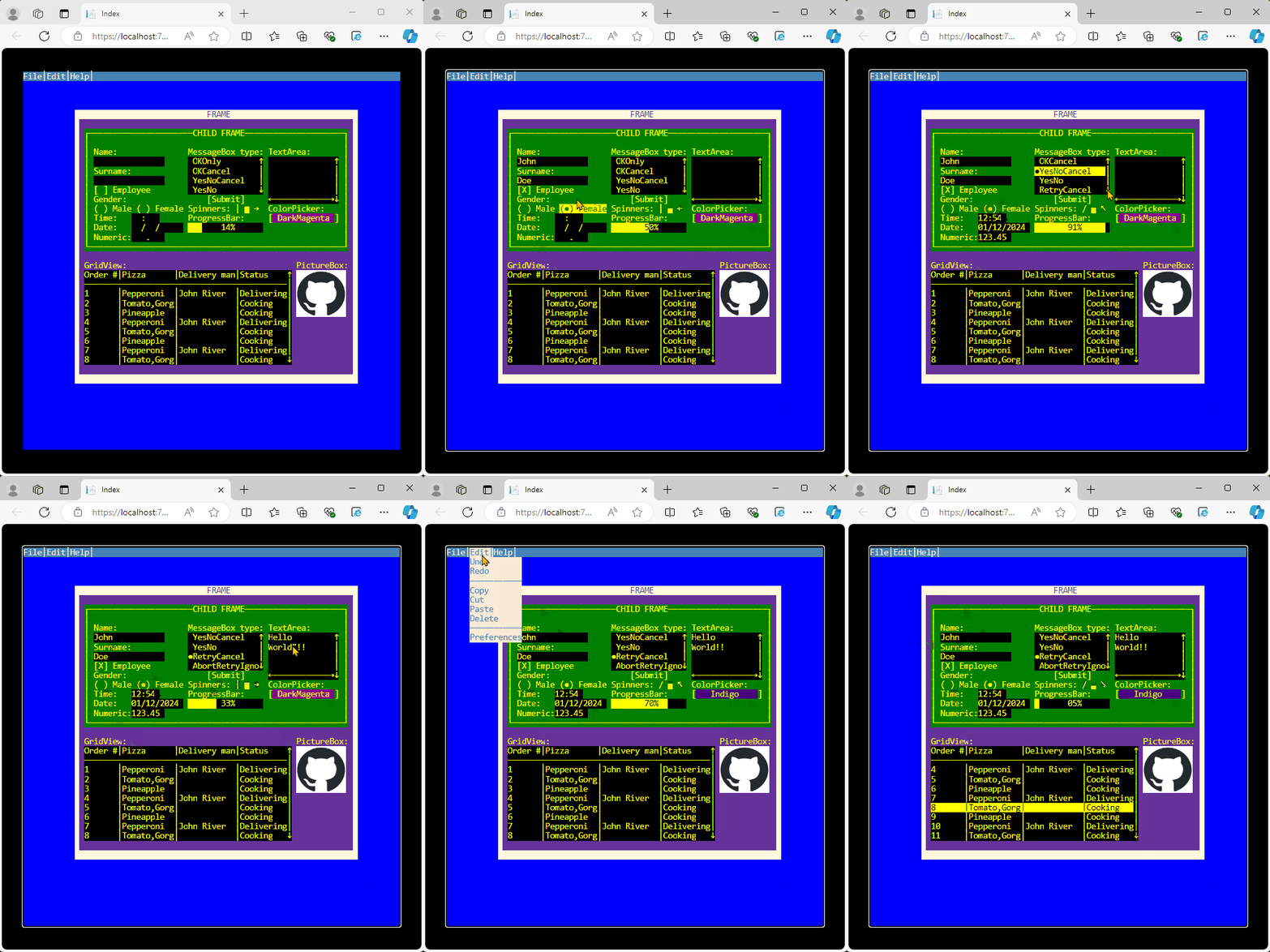
Features
- Character-cell rendering with foreground and background colors.
- Nested frames with relative coordinates and z-order.
- Keyboard focus,
Tab/Shift+Tabnavigation, and mouse interaction. - Menu bars with shortcuts and keyboard navigation.
- Modal dialogs and configurable message boxes.
- Responsive terminal scaling.
Requirements
- A Blazor Server application.
- The .NET 10 SDK.
Installation
Install BlazorTUI from NuGet:
dotnet add package BlazorTUI
Quick start
Add the BlazorTUI namespace to a Razor page, create a Screen, and render it with the component:
@page "/terminal"
@using global::BlazorTUI.TUI
@using Color = System.Drawing.Color

<BlazorTUI.BlazorTUI screen="@screen" />

@code {
    private readonly Screen screen = CreateScreen();

    private static Screen CreateScreen()
    {
        var screen = new Screen(80, 40);

        var frame = new Frame(
            "mainFrame",
            "CUSTOMER",
            12,
            5,
            56,
            12,
            Frame.BorderStyle.Line,
            Color.Yellow,
            Color.DarkBlue);

        screen.TopContainer.AddContainer(frame);

        frame.AddControl(new Label(
            "nameLabel", "Name:", 2, 2, 12, Color.White, Color.DarkBlue));

        frame.AddControl(new TextBox(
            "nameInput", "", 14, 2, 24, Color.Yellow, Color.Black));

        var saveButton = new Button(
            "saveButton", "Save", 14, 5, 10, Color.White, Color.DarkGreen);

        saveButton.Clicked += (_, _) =>
        {
            var message = new MessageBox(
                "Saved",
                "Result",
                MessageBox.Buttons.OKOnly,
                BorderStyle.Line,
                Color.White,
                Color.DarkGreen,
                screen);

            message.Show();
        };

        frame.AddControl(saveButton);
        screen.SetFocus("nameInput");

        return screen;
    }
}
Click inside the terminal before using the keyboard so the screen element receives browser focus. The focused terminal has a visible outline.
Screen and layout
A Screen defines the terminal dimensions. Character cells keep a 1:2 width-to-height ratio at any supported screen size; there is no predefined row limit. A screen twice as wide as it is high—for example, 80 × 40—forms a square terminal, while other dimensions preserve their natural aspect ratio.
The terminal grows to the available host size without overflowing the viewport. To embed it in a smaller area, give its parent an explicit width and height; the grid will fit inside that area automatically.
Coordinates are zero-based. Controls use coordinates relative to their parent container, which makes it possible to move a complete group by repositioning its Frame.
Every control must have a non-empty, unique name. Add elements through:
AddContainerfor nested frames and containers.AddControlfor controls inside a container.
These methods initialize parent references, tab order, and z-order. Use screen.SetFocus("controlName") to select the initial control.
Available controls
| Category | Controls |
|---|---|
| Layout | Frame |
| Text and input | Label, TextBox, PasswordBox, TextArea, NumericBox, DateBox, TimeBox |
| Selection | CheckBox, RadioButton, ListBox, ColorPicker |
| Actions and navigation | Button, MenuBar, Menu, MenuItem |
| Data and feedback | GridView, ProgressBar, Spinner, PictureBox |
| Modal UI | Dialog, MessageBox |
Control constructors accept System.Drawing.Color values for foreground and background colors.
Public API conventions
The recommended API follows standard .NET naming and event conventions:
- Use properties such as
Screen.Width,Screen.Rows,Screen.TopContainer,Control.Name,Control.Width, andTextBox.Value. - Use
IClipboardControlwhen application code needs to select, inspect, cut, or paste text programmatically. - Use
IUndoableControlto inspect, clear, undo, or redo a text control's bounded edit history programmatically. - Subscribe to
Clicked,GotFocus, andLostFocuswith+=. These events work consistently for mouse and keyboard activation. - Use
MenuBar.AddMenuandMenu.AddItemto build menus. TheirMenusandItemsproperties provide read-only views. - Use PascalCase enum members such as
BorderStyle.LineandFrame.BorderStyle.Solid.
Lowercase members from earlier releases remain available in the 0.8.x line for source and binary compatibility. New code should use the recommended members above.
Keyboard and mouse interaction
Tab: move to the next focusable control.Shift+Tab: move to the previous focusable control.EnterorSpace: activate buttons and selection controls.- Arrow keys: navigate text, lists, grids, color pickers, and menus where applicable.
Shiftplus the arrow,Home, orEndkeys: select text inTextBoxandTextArea.Ctrl+A,Ctrl+C,Ctrl+X, andCtrl+V: select all, copy, cut, and paste in text controls. UseCommandinstead ofCtrlon macOS.Ctrl+ZandCtrl+Y: undo and redo text edits. On macOS, useCommand+ZandCommand+Shift+Z.Alt: show menu shortcut keys.- Mouse click: focus or activate the control under the selected cell.
When a dialog is open, it receives input until it is closed.
The component exposes the terminal as a labelled interactive region and provides a text representation for screen readers. Give each terminal a meaningful label and, when useful, a short description:
<BlazorTUI.BlazorTUI
    screen="@screen"
    AriaLabel="Order entry terminal"
    AriaDescription="Enter customer and delivery details, then submit the order." />
Clipboard and edit-history shortcuts are intercepted only while a compatible TextBox or TextArea has focus. Other browser and assistive-technology shortcuts that use Ctrl, Command, or modified Alt combinations remain available to the browser. Clipboard access follows browser security and permission rules; use HTTPS outside local development.
Each text control retains its latest 100 text-changing operations. Undo and redo restore the text, cursor, selection, and TextArea scroll position. Assigning Value or calling ClearHistory() starts a new history.
Pasting into a TextBox converts line breaks to spaces and respects the control width. TextArea preserves line breaks and applies its MaxTextWidth and MaxLines limits.
Password input
PasswordBox provides the selection, paste, and undo/redo behavior of TextBox while rendering a mask instead of the stored value:
var password = new PasswordBox(
    "password",
    "",
    14,
    6,
    22,
    Color.Yellow,
    Color.Black,
    '*');

frame.AddControl(password);
The default mask is •. Use IsRevealed or ToggleReveal() to show the value explicitly. Copying and cutting are disabled by default, while pasting remains enabled; configure AllowCopy and AllowPaste when different behavior is required. Value always contains the unmasked text and should be handled as sensitive data.
Images
PictureBox accepts encoded image bytes. The default constructor treats the data as PNG:
byte[] imageData = File.ReadAllBytes("logo.png");

var picture = new PictureBox(
    "logo",
    imageData,
    47,
    17,
    10,
    5,
    Color.White,
    Color.Black);

frame.AddControl(picture);
For another browser-supported format, provide its MIME type after the byte array:
var picture = new PictureBox(
    "photo",
    jpegData,
    "image/jpeg",
    47,
    17,
    10,
    5,
    Color.White,
    Color.Black);
BlazorTUI displays the encoded image without resizing or converting the source data. If you are upgrading from an earlier version, replace the previous System.Drawing.Image constructor with one of the byte-array constructors above.
Executable examples
The repository contains focused pages that can be run directly:
| Example | Demonstrates |
|---|---|
| Controls and events | Text input, checkbox state, focus callbacks, click callbacks, and focus order |
| Dialogs and menus | Menu shortcuts, custom modal dialogs, and message boxes |
| Images | Loading encoded image bytes into a PictureBox |
| Complete showcase | All controls, nested frames, z-order, callbacks, and animation |
Run dotnet run --project SampleApp from the repository root and open /examples to browse them. The example routes are exercised by the automated test suite so API changes cannot silently leave the documentation out of date.
Changelog
0.8.4 — 2026-06-24
- Added
PasswordBoxwith configurable masking and explicit reveal support. - Preserved text selection and bounded undo/redo behavior while keeping the unmasked value out of the cell buffer by default.
- Added configurable copy and paste policies; password copying and cutting are disabled by default while pasting remains enabled.
0.8.3 — 2026-06-24
- Added text selection and clipboard support to
TextBoxandTextAreathroughCtrl/Command+A,C,X, andV. - Added the public
IClipboardControlAPI for programmatic selection, inspection, cutting, and pasting. - Added multiline paste normalization, configured text-limit enforcement, visible selection colors, and browser clipboard fallbacks.
- Added bounded undo and redo history for
TextBoxandTextArea, includingCtrl/Commandkeyboard shortcuts and the publicIUndoableControlAPI.
0.8.2 — 2026-06-23
- Added a consistent PascalCase public API, standard .NET events, read-only collection views, and precise argument validation while retaining the legacy
0.8.xmembers. - Added focused executable examples for controls, events, dialogs, menus, and images.
- Added accessible terminal semantics, screen-reader text, live menu and dialog announcements, visible focus, and selective keyboard interception that preserves browser shortcuts.
0.8.1 — 2026-06-23
- Added revision-based incremental rendering, unchanged-row skipping, cached cell CSS, and synchronization-safe timer updates.
- Added responsive rendering for arbitrary positive screen dimensions without a predefined row limit.
- Corrected cursor visibility and duplicate frame-title rendering regressions.
0.8.0 — 2026-06-23
- Upgraded the library, sample, dependencies, and package to .NET 10.
- Removed the
System.Drawing.Commondependency and changedPictureBoxto consume encoded image bytes for cross-platform use. - Eliminated compiler, analyzer, nullable, package, and platform warnings.
- Added automated unit, component, HTTP, and NuGet-consumer tests with Windows and Linux CI validation.
- Reworked the README around installing and using the library from NuGet.
License
BlazorTUI is available under the MIT License.
| Product | Versions Compatible and additional computed target framework versions. |
|---|---|
| .NET | net10.0 is compatible. net10.0-android was computed. net10.0-browser was computed. net10.0-ios was computed. net10.0-maccatalyst was computed. net10.0-macos was computed. net10.0-tvos was computed. net10.0-windows was computed. |
-
net10.0
- Microsoft.AspNetCore.Components.Web (>= 10.0.9)
NuGet packages
This package is not used by any NuGet packages.
GitHub repositories
This package is not used by any popular GitHub repositories.
| Version | Downloads | Last Updated |
|---|---|---|
| 1.0.1 | 175 | 7/2/2026 |
| 1.0.0 | 123 | 7/1/2026 |
| 0.8.15 | 134 | 7/1/2026 |
| 0.8.14 | 131 | 6/30/2026 |
| 0.8.13 | 136 | 6/29/2026 |
| 0.8.12 | 131 | 6/29/2026 |
| 0.8.10 | 124 | 6/28/2026 |
| 0.8.9 | 142 | 6/27/2026 |
| 0.8.8 | 128 | 6/26/2026 |
| 0.8.7 | 140 | 6/25/2026 |
| 0.8.6 | 123 | 6/24/2026 |
| 0.8.5 | 125 | 6/24/2026 |
| 0.8.4 | 119 | 6/24/2026 |
| 0.8.3 | 129 | 6/24/2026 |
| 0.8.2 | 125 | 6/23/2026 |
| 0.8.1 | 132 | 6/23/2026 |
| 0.8.0 | 130 | 6/23/2026 |
| 0.7.1 | 243 | 5/18/2025 |
| 0.7.0 | 232 | 9/2/2024 |
| 0.6.11 | 241 | 8/27/2024 |