Umbraco.Community.uAccessible
1.1.1
dotnet add package Umbraco.Community.uAccessible --version 1.1.1
NuGet\Install-Package Umbraco.Community.uAccessible -Version 1.1.1
<PackageReference Include="Umbraco.Community.uAccessible" Version="1.1.1" />
<PackageVersion Include="Umbraco.Community.uAccessible" Version="1.1.1" />
<PackageReference Include="Umbraco.Community.uAccessible" />
paket add Umbraco.Community.uAccessible --version 1.1.1
#r "nuget: Umbraco.Community.uAccessible, 1.1.1"
#:package Umbraco.Community.uAccessible@1.1.1
#addin nuget:?package=Umbraco.Community.uAccessible&version=1.1.1
#tool nuget:?package=Umbraco.Community.uAccessible&version=1.1.1
uAccessible



Accessibility audit reports for your Umbraco content pages — directly inside the backoffice.
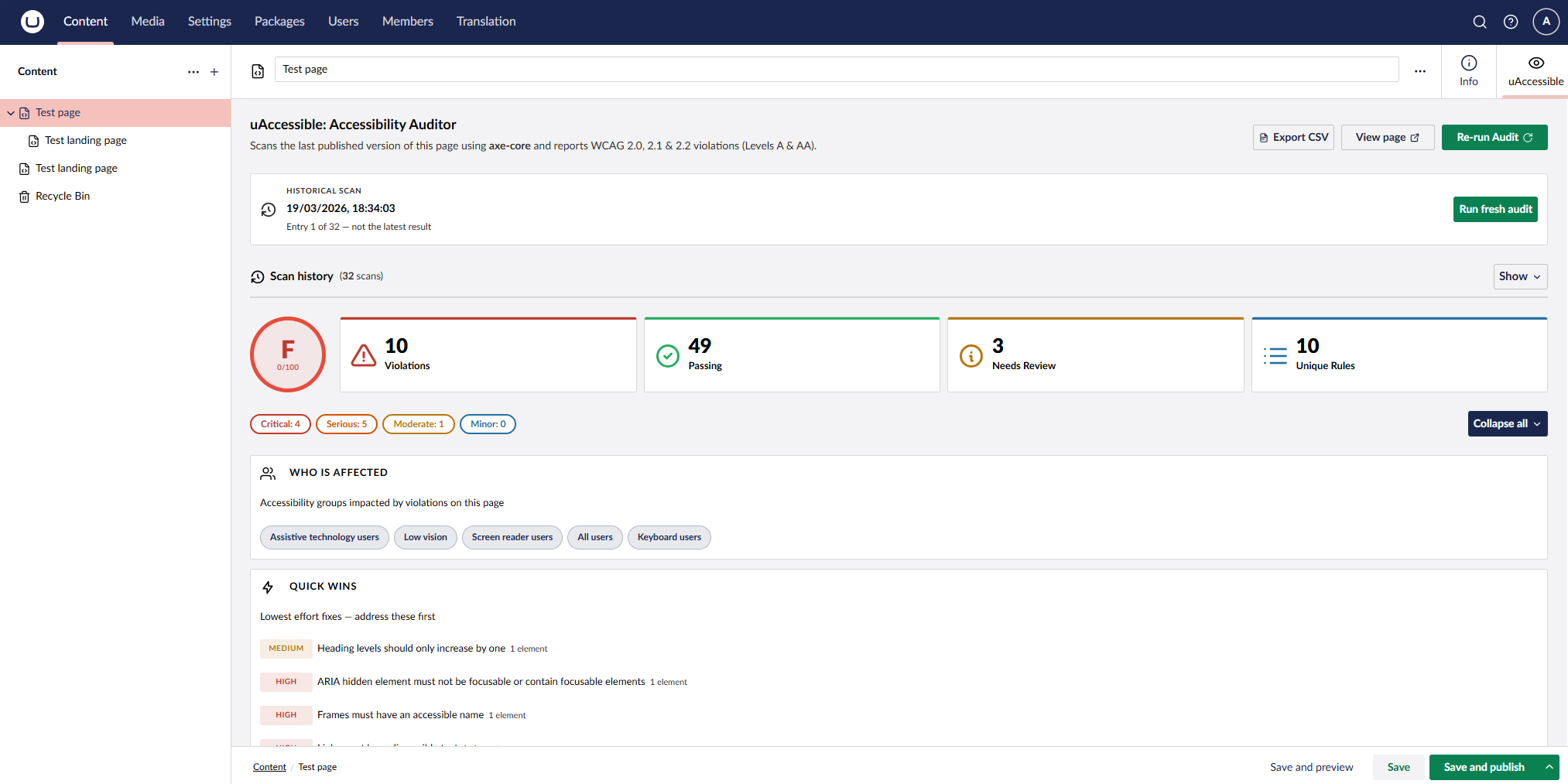
uAccessible adds an Accessibility tab to every content node workspace. Clicking it launches a headless Chromium browser, runs a full axe-core audit against the last published version of the page, and returns a graded report with violations, remediation guidance, WCAG success criteria, and affected HTML elements — without leaving the backoffice.
Features
- Accessibility workspace tab — audit the page you're editing without leaving the content node
- A–F accessibility grade — at-a-glance score (0–100) based on violation count and severity
- WCAG level badges — each violation is tagged A, AA, AAA, or Best Practice at a glance
- Violations — each failing rule shown with impact level (Critical / Serious / Moderate / Minor), WCAG success criteria tags, affected HTML elements with CSS selectors, failure reasons colour-coded by severity, and a direct link to the axe-core remediation guide
- Quick wins panel — surfaces the lowest-effort, highest-impact fixes first
- Needs manual review — items axe-core could not fully determine automatically, requiring human judgement
- Passing checks — collapsible section showing all rules that passed, with the specific criteria each element satisfied and CSS selectors for every checked element
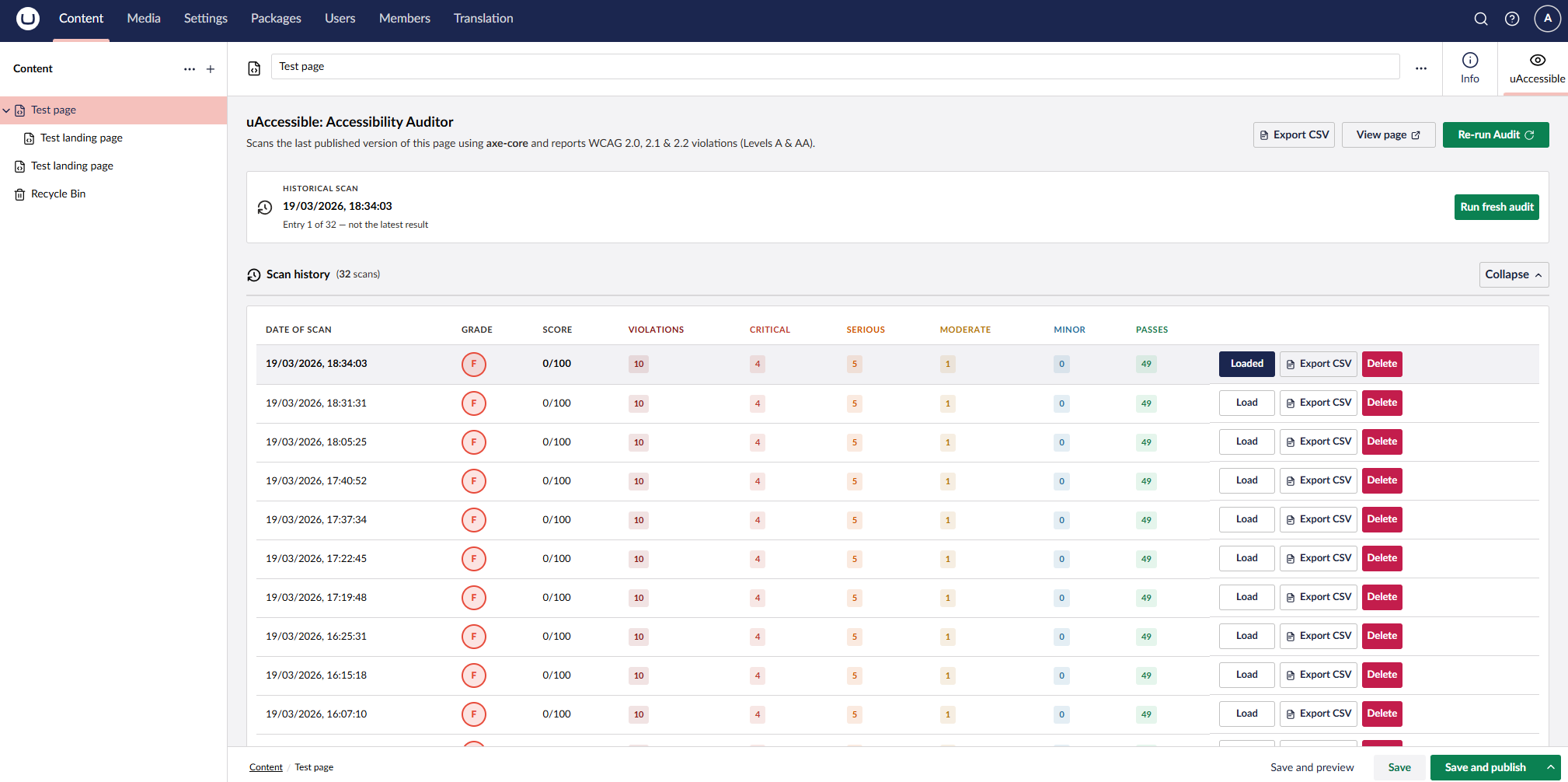
- Scan history — per-page history of the last 10 audits with score, grade, and full violation breakdown (Critical / Serious / Moderate / Minor / Passes); load any historical report in full, export individual history entries as CSV, or delete entries; persisted across restarts
- CSV export — export violations for the current scan or any historical entry to a CSV file
- Collapse / expand controls — collapse all cards at once or toggle individual sections independently
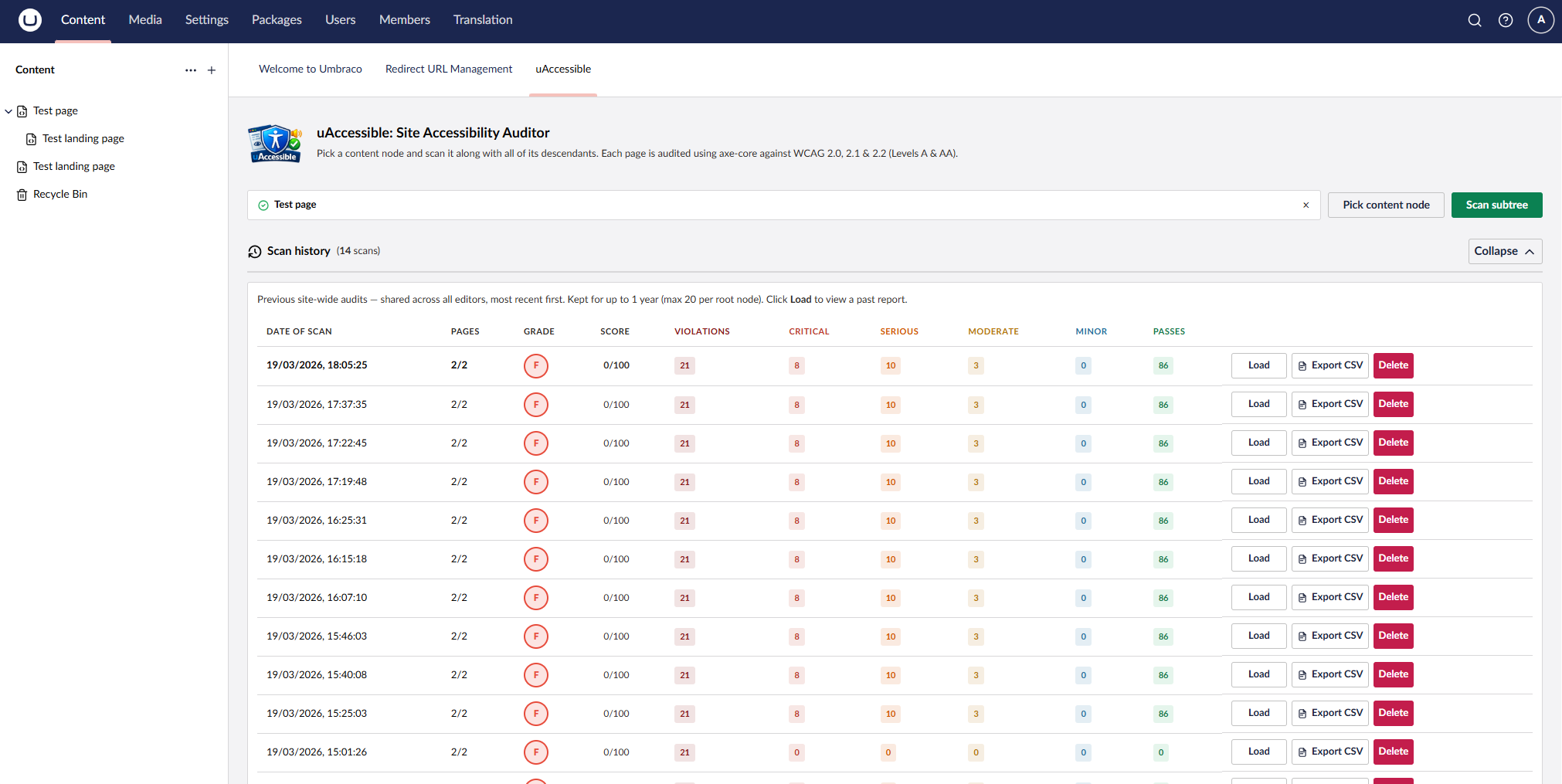
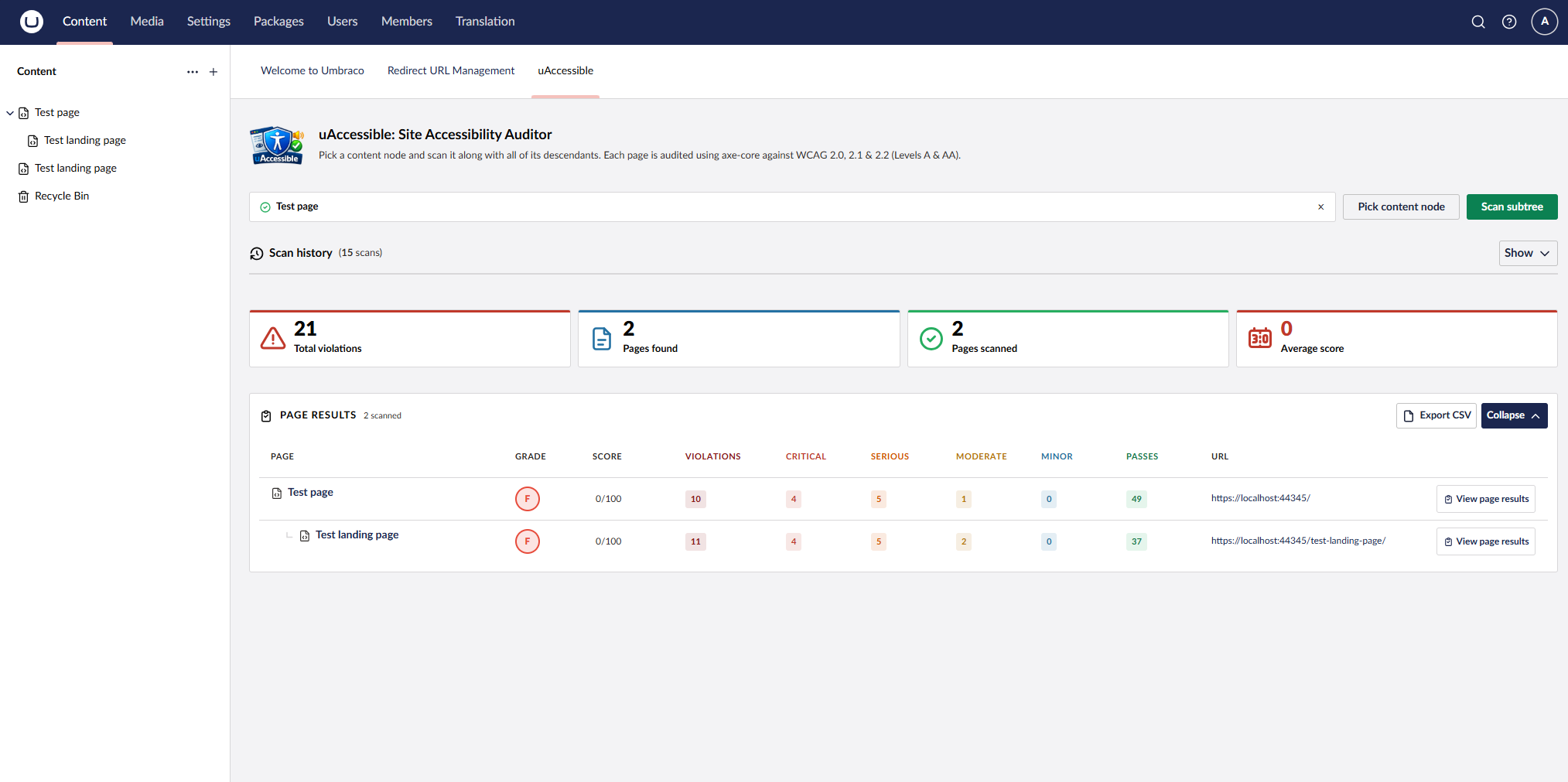
- Site-wide audit dashboard — pick any content node and scan it plus all descendants; summary stat cards, sortable page results table with depth indicators and content-type icons, and CSV export
- Site-wide audit history — history of past site audits with average score, violation totals, and page counts; load any previous full site report or export it as CSV
- Navigate to workspace — jump from any page in a site audit result directly to that page's workspace accessibility tab with the report pre-loaded
- Concurrent scan protection — duplicate scans of the same page or tree are blocked with a clear in-progress warning
- Exclusions config — exclude document types or specific content keys from site-wide scans via
appsettings.json - WCAG 2.0 / 2.1 / 2.2 coverage — Levels A and AA, powered by axe-core
Requirements
- Umbraco 17+
- .NET 10+
- PowerShell (for Playwright browser install — included with Windows; available via
brew install powershellon macOS/Linux)
Installation
1. Add the NuGet package
dotnet add package Umbraco.Community.uAccessible
2. Install the Chromium browser (one-time per server)
uAccessible uses Microsoft Playwright to drive a headless browser for each scan. After your first build, run:
Windows / PowerShell:
pwsh bin/Debug/net10.0/playwright.ps1 install chromium
Linux (Ubuntu/Debian — installs OS dependencies too):
pwsh bin/Debug/net10.0/playwright.ps1 install --with-deps chromium
macOS:
pwsh bin/Debug/net10.0/playwright.ps1 install chromium
For a Release build, substitute Debug with Release in the path above. For CI/CD pipelines, add this step once after each deployment — e.g. pwsh $DOTNET_ROOT/tools/playwright.ps1 install --with-deps chromium on GitHub Actions.
3. Done
No appsettings.json changes are required. Restart your site and the Accessibility tab will appear on every content node.
Optional: To exclude document types or specific pages from site-wide scans, add the following to appsettings.json:
"uAccessible": {
  "ExcludedDocumentTypes": ["robotsTxt", "redirects"],
  "ExcludedContentKeys": ["00000000-0000-0000-0000-000000000000"]
}
Usage
- Open any published content node in the Umbraco backoffice
- Click the Accessibility tab
- uAccessible resolves the published URL, launches a headless Chromium browser, and runs a full axe-core scan
- Results are returned immediately as a graded report — violations, manual review items, and passing checks are all listed with full detail
Note: The page must be published and publicly accessible for the scan to work. Pages behind a login or bot-protection cannot be reached by the headless browser.
Source & Issues
| Product | Versions Compatible and additional computed target framework versions. |
|---|---|
| .NET | net10.0 is compatible. net10.0-android was computed. net10.0-browser was computed. net10.0-ios was computed. net10.0-maccatalyst was computed. net10.0-macos was computed. net10.0-tvos was computed. net10.0-windows was computed. |
-
net10.0
- Deque.AxeCore.Playwright (>= 4.11.1)
- Microsoft.Playwright (>= 1.58.0)
- Umbraco.Cms.Api.Common (>= 17.0.0)
- Umbraco.Cms.Api.Management (>= 17.0.0)
- Umbraco.Cms.Web.Common (>= 17.0.0)
- Umbraco.Cms.Web.Website (>= 17.0.0)
NuGet packages
This package is not used by any NuGet packages.
GitHub repositories
This package is not used by any popular GitHub repositories.